

All flyers to be posted on digital signage must be:
- sized to 1920 pixels x 1080 pixels (20″ wide x 11.25″ high) for Divinity signage or 1080 pixels x 1920 pixels (11.25″ wide x 20″ wide) for other (vertical) signage across campus
- image resolution must be either 72 or 96 dpi
- saved as .jpg, .jpeg, or .png
The following instructions are for flyers created using blank templates.
Exporting a .png or .jpeg in Microsoft PowerPoint
Windows:
- Go to File –> Export
- Choose “Change File Type”
- Under “Image File Types” choose either PNG or JPEG
- Click the “Save As” icon
- Choose your file location
- Give your file a descriptive name
- Click “Save”

Mac:
-
- Go to File –> Export
- Give your file a descriptive name
- Choose your file destination
- Choose “JPEG” or “PNG” from the “File Format” list
- Choose “Save Current Slide Only”
- Width=1920, Height=1080
- Click Export
Exporting a .png or jpeg in Google Slides
-
- Go to File –> Download
- Choose “JPEG Image (.jpeg, current slide)” or “PNG Image (.png, current slide)”
- File(s) will be saved in your browser’s download folder
Exporting a .png or jpeg in Microsoft Publisher
-
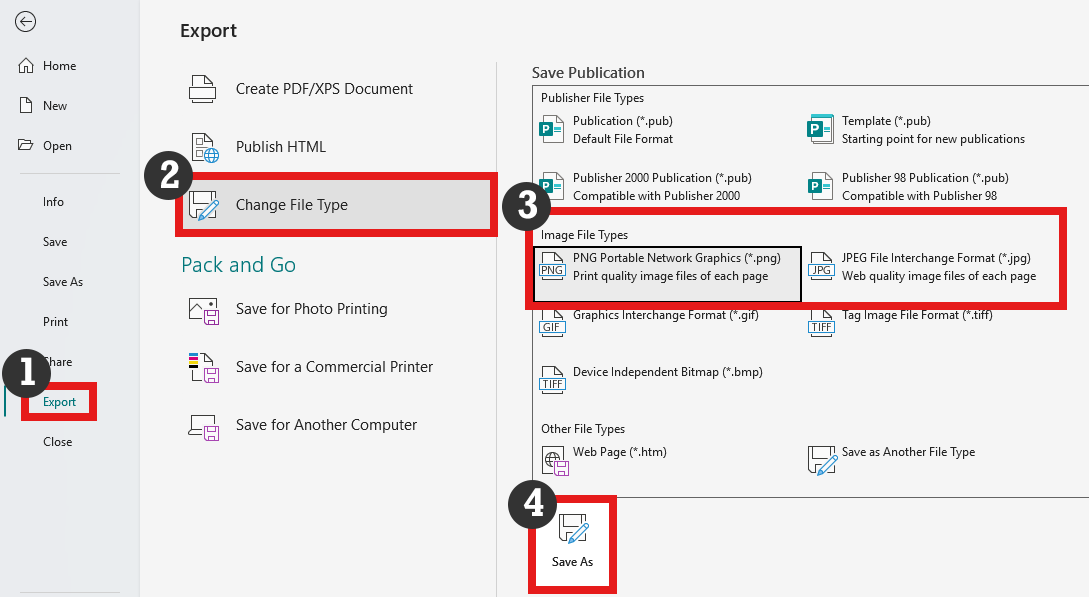
- Go to File –> Export
- Choose “Change File Type”
- Under “Image File Types” choose either PNG or JPEG
- Click the “Save As” icon
- Choose your file location
- Give your file a descriptive name
- Click “Save”
- Go to File –> Save As
- Give your file a descriptive name.
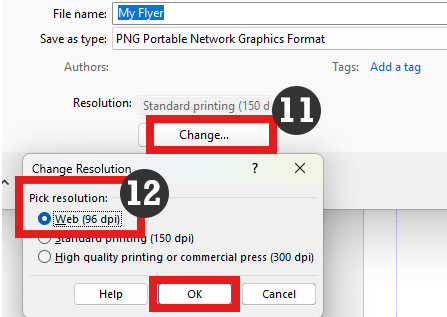
- Choose “JPEG File Interchange Format” or “PNG Portable Network Graphic” from the “Save as type” list.
- The default resolution will be set to “Standard printing (150)”; click on the “Change…” button below this.
- Choose “Web (96 dpi) then click “OK”.
- Then click “Save”.
Exporting a .png or jpeg in Apple Keynote
-
- Go to File –> Export To
- Choose “Images…”
- Under “Format” choose either PNG or JPEG
- Click “Save”
- Name the file, choose the location, and click “Export”
USING CANVA TO CREATE A FLYER
HOW TO SUBMIT YOUR DIGITAL FLYER
Duke provides a publishing system, called DukeFlyer, for anyone with a NetID to submit flyers to digital signage displays across campus. Users can easily monitor when and where their flyers are displayed. DukeFlyer also allows digital signage display owners a way to easily manage their own flyers as well as flyers submitted by other departments and users.
